Screenshots in. Things done out.

Swipe each screenshot to Reminder, Keep or Bin. Sorts reads them on your iPhone. Nothing leaves it.

All sorted.

Swipe the card, or tap a shelf.

Every screenshot was a plan. Then it joined the pile.

A place to try, a date to keep, a thing to buy. You take the screenshot in a second and the reason is gone within the hour. Sorts asks once, while you still remember, then gets out of the way.

Three shelves. One swipe each.

Reminder

Goes straight into Apple Reminders, titled with what Sorts read on the screenshot.

Swipe up
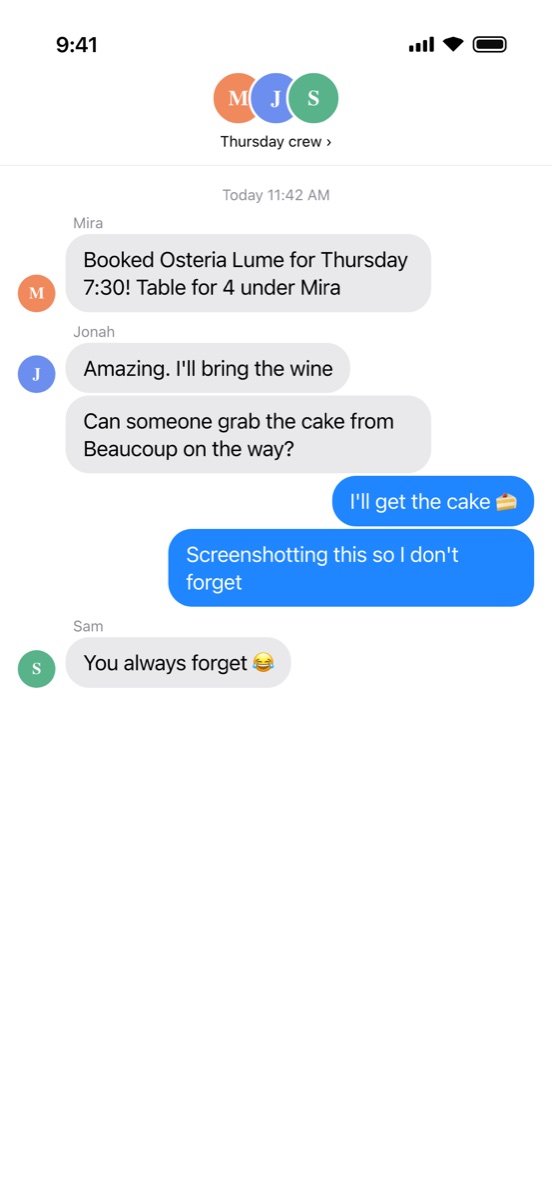
A group chat booking dinner at Osteria Lume on Thursday at 7:30

Keep

Tagged and searchable. Send it on to Mem or your own server if you like.
Swipe right

Bin

Deleted from Photos together, in one tap, when you say so.
Swipe left

Tag it once. It files itself.

Add a tag as you sort, and give each tag a home. From then on, a Keep with that tag goes where it belongs.

Suggested on your iPhoneApple's on-device models suggest tags and titles. When Sorts is very sure it adds them itself, marked with a sparkle, and one tap takes them off. Reminders always wait for you.
Tag many at onceSearch for "flight", select the results, and add or remove a tag on all of them together.
recipesPhotos albumMem
concertsCalendar
eatPlacesPhotos album
workYour server

Your tags, your homes. These are examples.

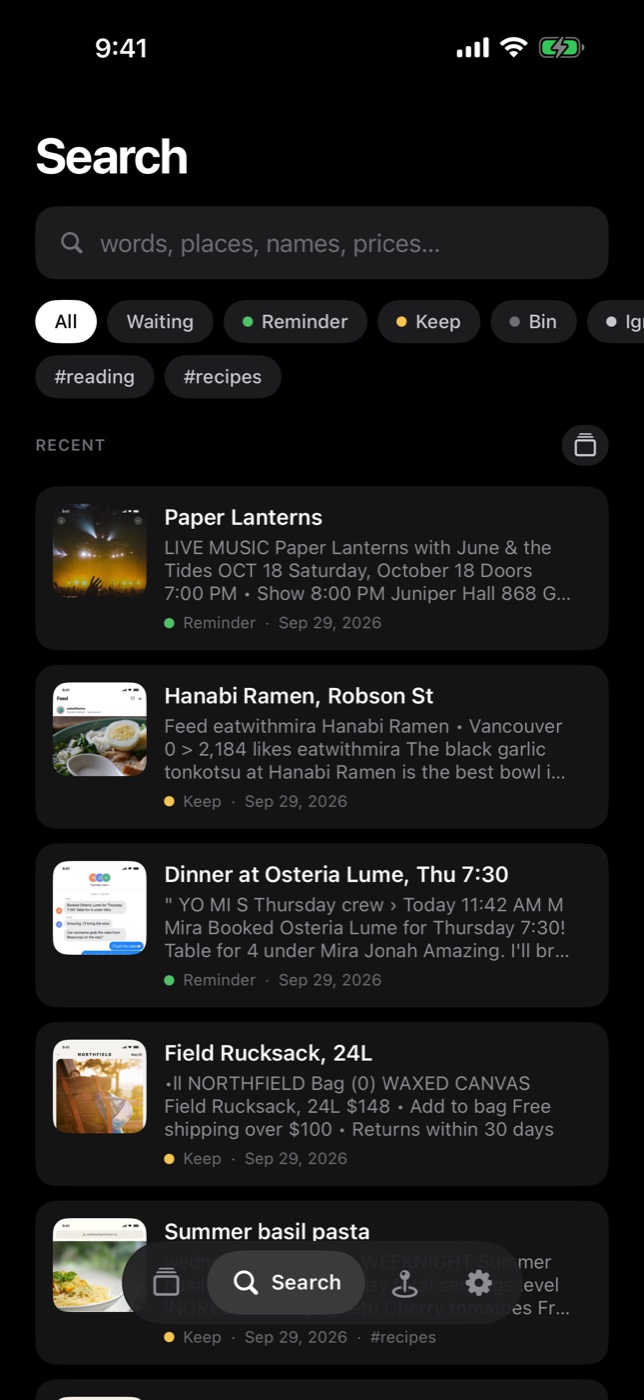
The Sorts search screen, listing kept screenshots and reminders with the text read from each

Find it again without scrolling for it.

Search what is insideSorts reads the text in every screenshot, so "ramen" finds the place you saved in March.
Filter by shelf or tagShow only your Reminders, or everything tagged recipes.
A small preview, not a copyDelete the screenshot from Photos and Sorts still knows what it was.

Sorts hands things to the apps you already use.

On your iPhone

  • RemindersThe Reminder shelf. Goes to your default list, titled from the screenshot.
  • CalendarMap a tag to a calendar, and a Keep adds the event on the date the card shows.
  • Photos albumsAn album for every tag, or only the tags you choose.
  • PlacesTag something as a place and Apple Maps finds it. Places lists them nearest first.

Services you choose

  • MemKept screenshots go to the Mem collection that matches their tag.
  • WebhooksPost to your own server: title, text, tags, dates, and the picture if you want it.
  • Email to meMail a screenshot to yourself, attached, with its text as the message.
  • Share to SortsShare a picture or a link from any app, and it joins the deck.

Every one is optional and off until you set it up. Nothing goes anywhere you did not point it.

No account.
No server.
No tracking.

Sorts reads your screenshots with Apple's on-device models. Nothing is uploaded, and there is nothing to sign up for. A screenshot only leaves your iPhone if you send it somewhere yourself. Read the privacy policy.

Questions

Does Sorts upload my screenshots?

No. Sorts reads each screenshot on your iPhone. There is no Sorts server and no account. A screenshot leaves your phone only when you send it to a place you set up yourself, like your Mem or your own webhook.

What happens to a screenshot after I sort it?

It stays in Photos until you decide. Binned screenshots wait in the Bin, and you delete them from Photos together in one step. Sorts keeps a small preview of each one so you can still recognise it later.

Where do reminders end up?

In Apple Reminders, on your iPhone, in your default list. Sorts titles each one from the text it read.

Do I need Mem or a server?

No. Sorts works on its own with the apps already on your iPhone. Mem, webhooks and email are there if you want them.

What does it cost?

Sorts is free to download.

Which iPhones does it run on?

Any iPhone with iOS 26 or later.

The Sorts app icon

Clear the pile this week.

Sorts for iPhone.